Reviewed by Ottmega Editorial Team • Last updated Nov 4, 2025
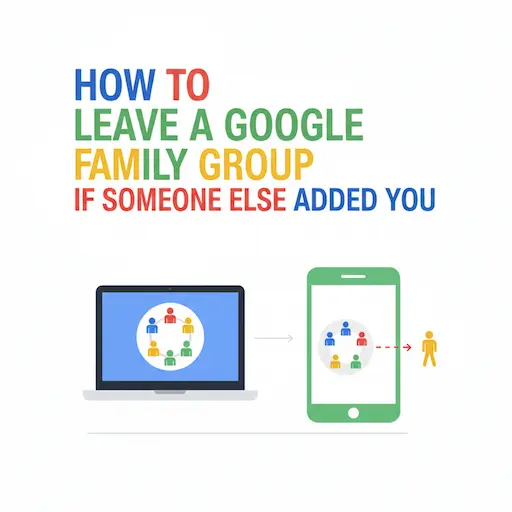
🚪 How to Leave a Google Family Group If Someone Else Added You (Full Guide)
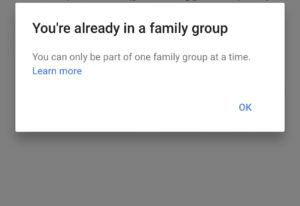
Have you been added to a Google Family Group by someone else — maybe to share YouTube Premium, Google One, or Play Store benefits — but now you want to remove yourself? No problem! Whether you’re on a PC, Android, or iPhone, here’s the complete step-by-step guide to leave a Google Family Group safely and completely.
💻 How to Leave a Family Group on PC (Computer or Laptop)
You can easily leave your family group using a browser.
👉 Step-by-Step Guide:
- Open your web browser and go to the official page: https://g.co/YourFamily
- Sign in with your Google Account that’s part of the family group.
- View your family group details and listed members.
- Click Leave family group.
- Confirm when Google asks for confirmation.
✅ That’s it! You’ll instantly leave the family group and lose access to shared services like YouTube Premium or Google One.
📱 How to Leave a Family Group on Android
On Android, you can leave using your device settings or the YouTube app (for YouTube Family plans).
🧭 Option 1 — Through Google Account Settings
- Open your device Settings.
- Scroll down and tap Google.
- Select Manage your Google Account.
- Go to the Payments & Subscriptions or Family tab.
- Tap Leave family group and confirm.
🎵 Option 2 — Through the YouTube App (YouTube Premium Family)
- Open the YouTube app.
- Tap your profile picture (top right).
- Go to Settings → Purchases and memberships.
- Find your YouTube Premium Family plan.
- Tap Leave family group and confirm.
✅ You’ll be removed immediately and your account will switch back to standard access.
🍎 How to Leave a Family Group on iPhone or iPad
On iPhone or iPad, you can use the Family Link app or a browser.
👉 Method 1 — Family Link App
- Open the Family Link app.
- Tap your profile icon (top right).
- Go to Manage Family Group.
- Tap Leave family group and confirm.
👉 Method 2 — Browser (Safari or Chrome)
- Visit https://g.co/YourFamily.
- Sign in with your Google account.
- Tap Leave family group and confirm.
✅ You’ll successfully leave the family group.
⚠️ What Happens After You Leave
- You lose access to shared subscriptions (YouTube Premium, Google One, Play Store Family Library, etc.).
- Shared payment methods are removed from your account.
- You can join another family group only once every 12 months.
- Your apps and purchases remain yours — nothing is deleted.
👧 For Children & Supervised Accounts
If your account is a child’s supervised account:
- You can’t leave the family group yourself.
- A parent must either:
- Delete your supervised Google Account, or
- Transfer supervision to another parent.
🗑️ If You’re the Family Manager
If you’re the family manager, you can’t leave your own group — you must delete it:
- Go to https://g.co/YourFamily.
- Select Delete family group.
- Confirm. (All members will be automatically removed.)
📌 Important Reminders
- Shared benefits end immediately once you leave.
- You can join another group only after 12 months.
- Your data and purchases remain safe.
- You can rejoin later if re-invited by the manager.
🔗 Official Google Family Link
Manage or leave your family group here: 👉 https://g.co/YourFamily
✨ Final Thoughts
Leaving a Google Family Group is quick and secure — whether you’re on PC, Android, or iPhone. Just remember that you’ll lose shared benefits like YouTube Premium or Google One, but your personal data and apps will stay safe in your Google Account.
Top Recommended Plans & Subscriptions
Verified subscriptions with instant WhatsApp activation & 24/7 replacement warranty from India's #1 trusted OTT seller.